





Samsung TVs ship with default settings optimized for showroom displays and energy savings, not sports viewing. Out of the box, your Samsung TV is working against you during the World Cup.
Motion smoothing makes live actual look unnatural. Eco Mode dims brightness and reduces contrast. Standard audio buries commentary under crowd noise, and so on. But it doesn't have to be so! These five quick setting changes transform how the FIFA World Cup looks and sounds.
These adjustments take minutes but deliver stadium-quality viewing. Here's exactly which settings to tweak.

1. Disable Picture Clarity (motion smoothing)

Samsung calls motion smoothing "Picture Clarity," and it's often enabled by default. This feature adds extra frames between actual video frames to reduce blur. For sports, this is the opposite of what you want. It makes live action look overly smooth and artificial, aka the "soap opera effect."
Go to Settings, Picture, Expert Settings, Picture Clarity Settings and set it to Off. This restores natural motion and makes World Cup matches feel immediate and realistic.
If you watch other content where slight smoothing helps, you can experiment with settings, but for live sports, Off is the right choice.
2. Enable amplify sound mode
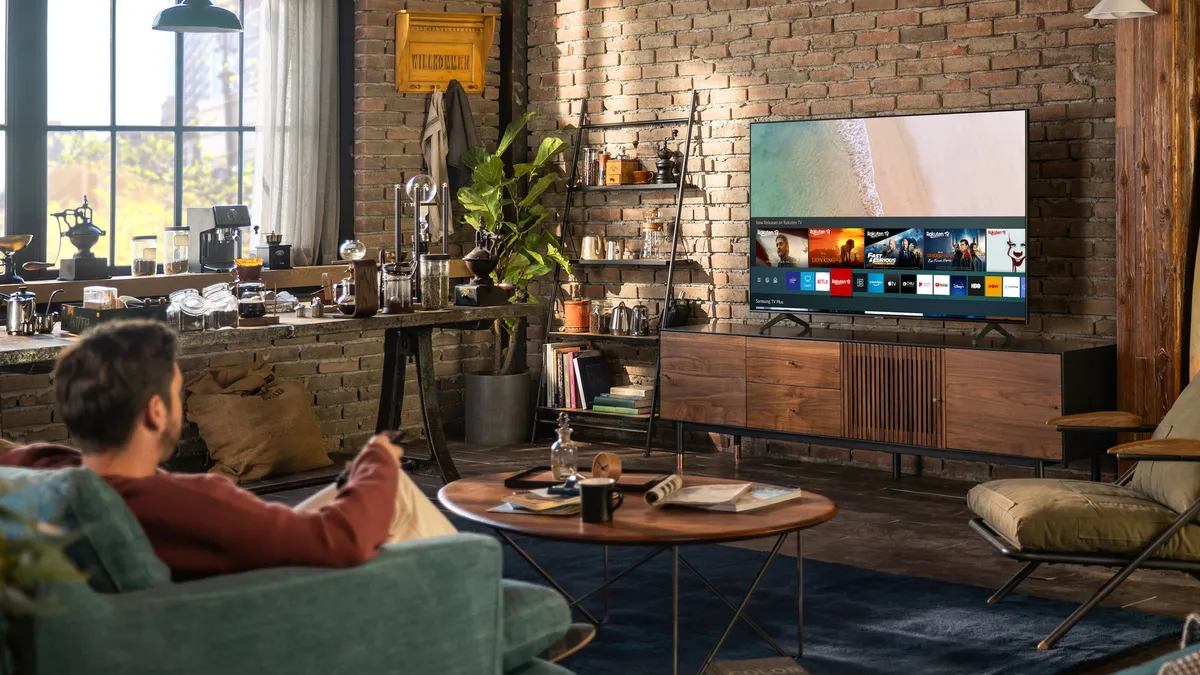
Standard audio buries live commentary under crowd noise and stadium ambience. Samsung's Amplify sound mode emphasizes the frequency range where human voices exist, pushing commentary forward so it cuts through background noise.
Go to Home on your remote, open Quick Settings, tap Sound Mode, and select Amplify.
For older Samsung models, press Home, go to Settings, Sound, Sound Mode, and select Amplify. You'll immediately notice commentators become clearer while stadium atmosphere remains intact.
3. Turn off eco mode

Eco Mode reduces brightness automatically to save electricity. It sounds environmentally responsible, but it undermines picture quality. Your TV dims below your manually set brightness, making colors look duller, contrast decreases, and details in darker scenes disappear.
Go to Settings, General and Privacy, Power and Energy Saving, and toggle off Eco Solution. You'll immediately notice brighter, more dynamic colors and sharper contrast.
For World Cup viewing, especially matches played in darker stadiums or during evening broadcasts, this makes a significant difference.
4. Enable auto volume

World Cup matches have dramatic swings in volume: quiet commentary suddenly interrupted by roaring crowds and loud action sequences. Auto Volume keeps audio levels consistent across these changes, eliminating the need to constantly adjust your remote.
Go to Home on your remote, then Settings, Sound, Expert Settings, and toggle on Auto Volume. This narrows the gap between the quietest dialogue and the loudest crowd moments, so you're not fighting with volume levels throughout the match.
5. Disable automatic brightness optimization

Samsung's brightness optimization automatically adjusts your TV's brightness based on room lighting. While this sounds helpful, it often delivers inconsistent results and leaves your screen too dim or too bright as room lighting changes.
Go to Settings, General and Privacy, Power and Energy Saving and turn off Brightness Optimization.
Then navigate to Settings, Picture, Expert Settings, and manually adjust the brightness while watching World Cup footage. This will give you consistent, predictable brightness throughout the match.

Follow Tom's Guide on Google News and add us as a preferred source to get our up-to-date news, analysis, and reviews in your feeds. Subscribe to Tom's Guide on YouTube and follow us on TikTok. Finally, you can visit our dedicated Tom's Guide Savings Squad hub for expert help on getting the best products for less.
More from Tom's Guide
- How to watch World Cup 2026: live stream every game for free from anywhere in the world
- 3 TV settings to change right now for the ultimate World Cup experience
- How to extend your TV's lifespan — 5 simple habits that make it last longer

